Editor
Tree Search is not only for finding things. You can write into your vault straight from the search results.
Quick Add
Select a note row and press Alt+A, or click the ⊕ on the row. The Search modal or pane switches to the editor, with a - [[Note]] bullet ready for you. When you save, the bullets are written into today’s daily note, so the new lines show up under that note in the tree, and you are back at your search with the new line selected. Esc also takes you back to the search.
The Tree Search: Quick Add command (also Open editor, or Alt+N in a search) opens Search in Quick Add mode, titled Quick Add. Type to search: Enter on a note, heading or line (Patch and its name in the footer) picks it to add under, as > does (see Adding from Search). When what you type matches nothing, Enter (Add) writes it into today’s daily note, and the box clears for the next one. Alt+Enter with nothing typed opens your draft in the editor; Esc goes back to a normal search.
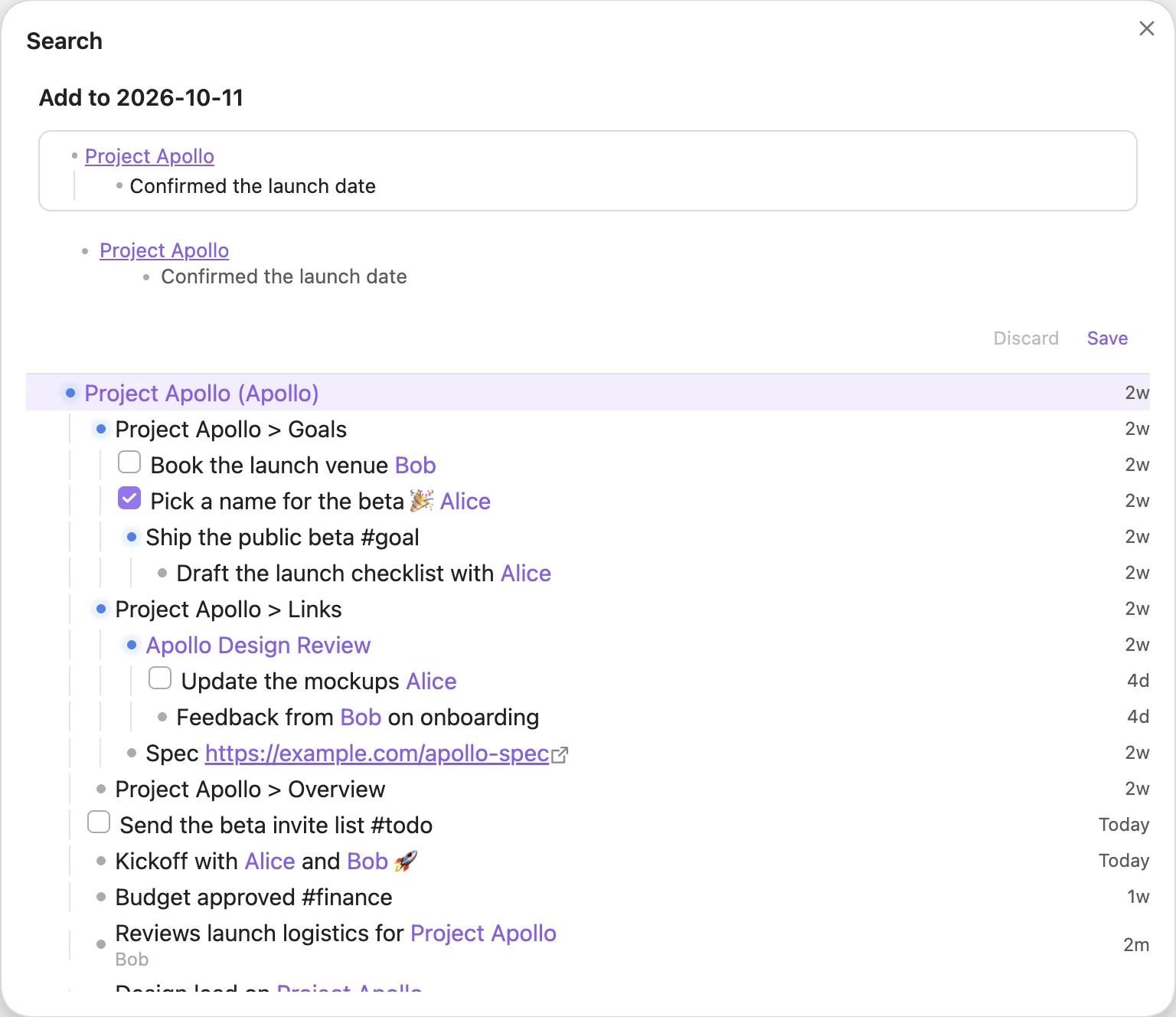 Appending “Confirmed the launch date” under
[[Project Apollo]].
Your draft is kept when you close the editor, and even when you restart Obsidian. It stays until you Save (Shift+Enter or Cmd/Ctrl+Enter) or Discard it.
Linking while you type
Type [[ in the editor and Tree Search suggests notes from the tree. Press Enter or Tab to accept a suggestion. When no note has the exact name you typed, a New note [[name]] row sits above the suggestions: press ↑ from the first suggestion to select it (it is selected already when nothing matches). It inserts the link; the note is created only if you add content to it.
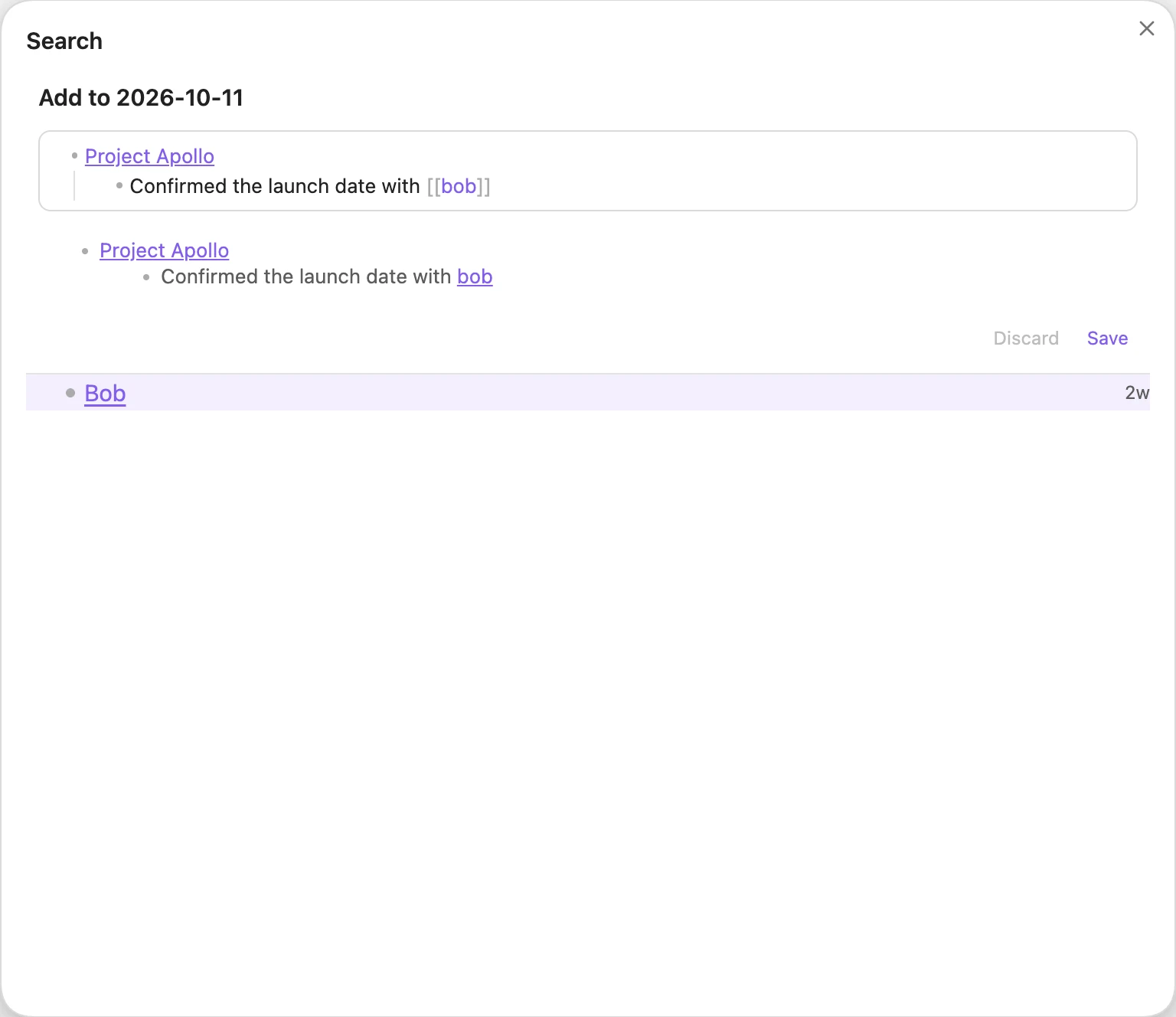 Typing
[[bob suggests notes from the tree; suggestions start after three characters.
Editing a line in place
Select a row and press Alt+Enter, or Alt-click it, to edit that line where it was written. On a heading this renames the heading; on an attachment (an image, a PDF) it renames the file, and Obsidian updates the links to it. The Search modal’s title says what you are doing: Edit, Rename, or Patch while you build a > chain.
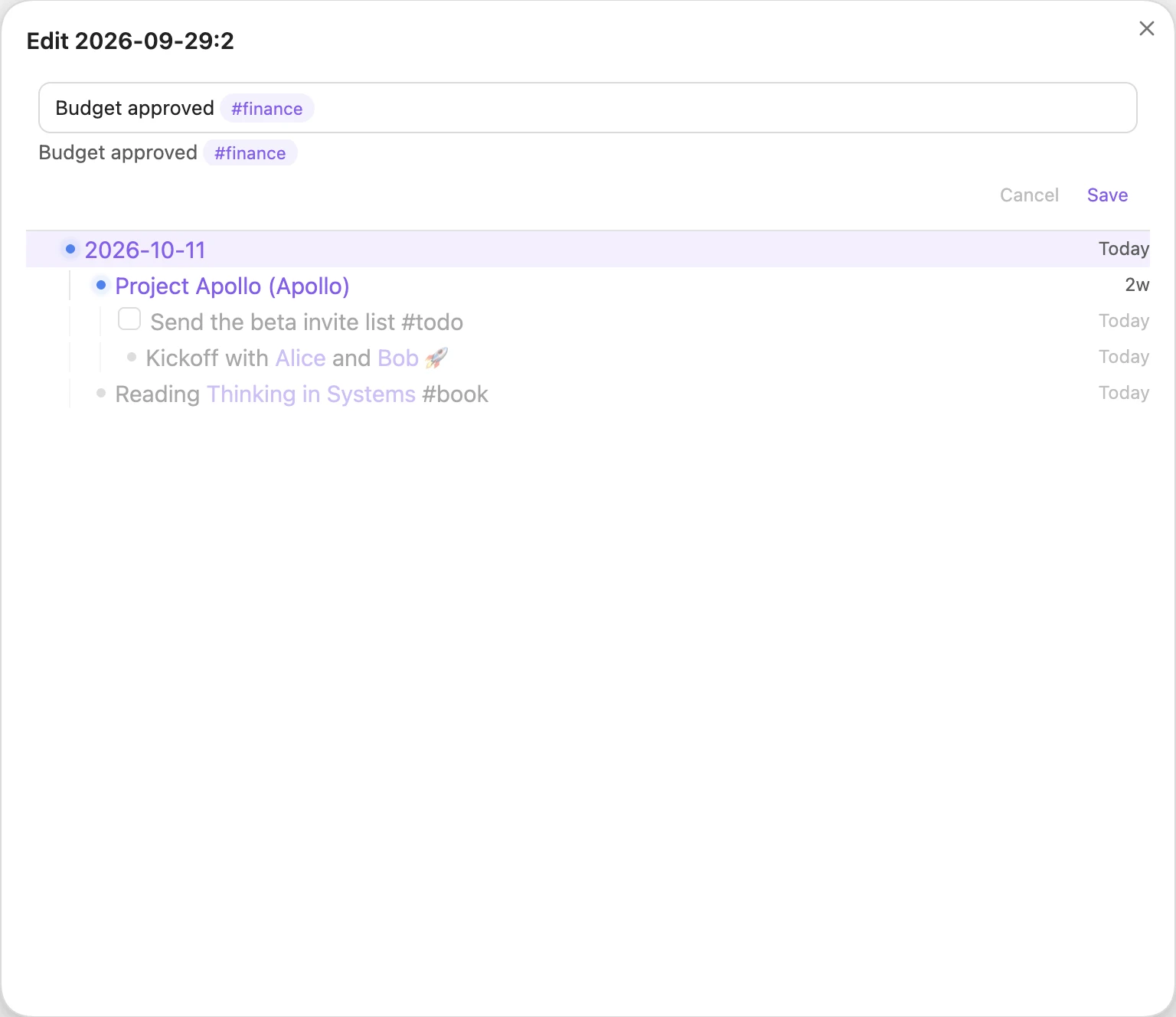 Editing “Budget approved” without leaving the search.
Quick Link
Run the Tree Search: Quick Link command while you are writing a note. Search for a note or heading and pick it to insert [[Note]] or [[Note#Heading]] at your cursor.
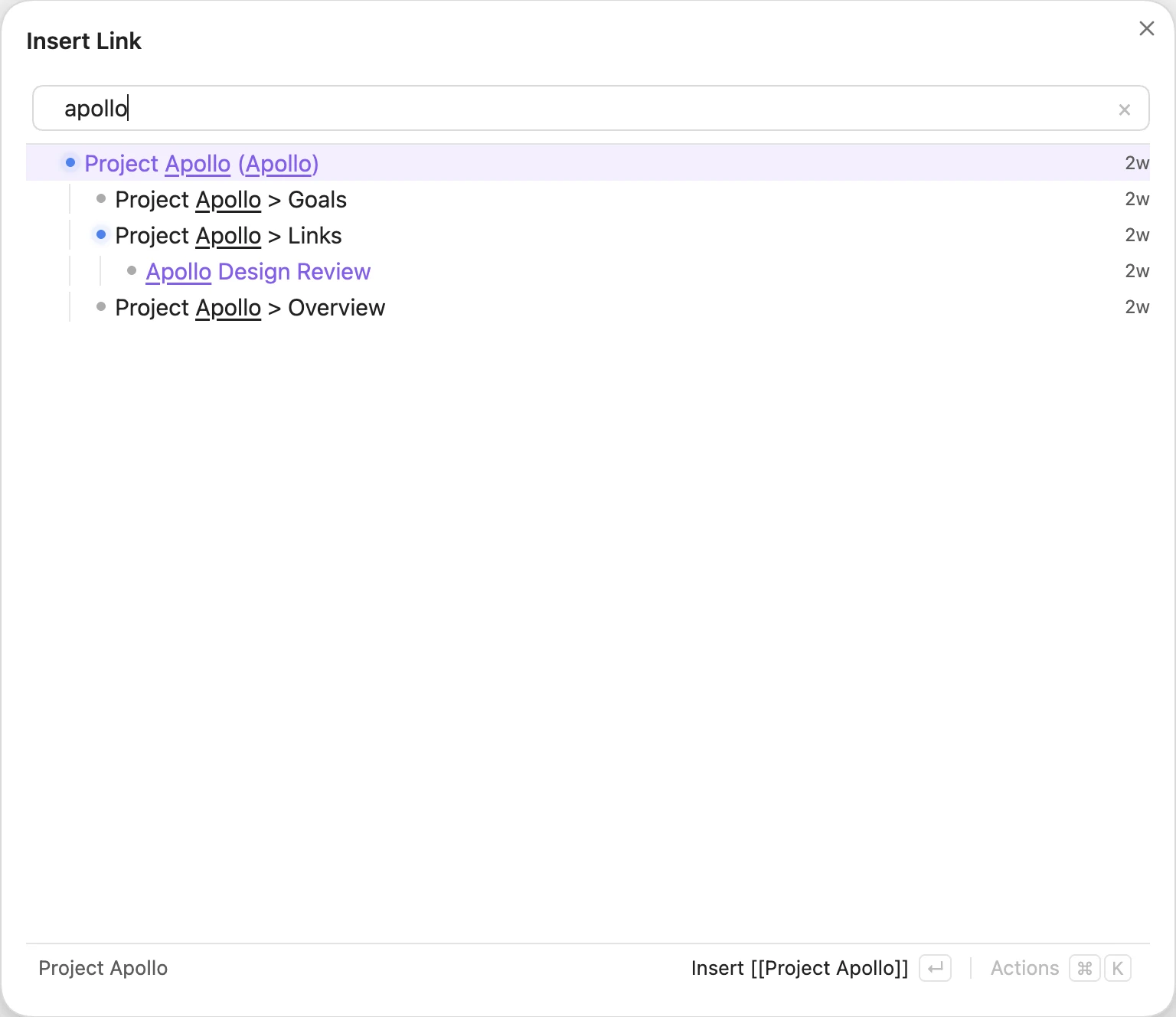 Quick Link for
apollo.
Adding from Search
In the Search modal or pane, select a row and type >. It becomes a chip in the search box, and the search now looks under it. Type > or press Enter on a result to go deeper (the footer shows Patch and the result’s name), or type what to add and press > again to make it a chip:
| Type | Adds |
|---|---|
- text, [ ] task |
a bullet or a task |
[[Note]] |
a link to the note; the note is created if it doesn’t exist |
\|alias |
an alias on the current note |
#heading |
a heading in the current note (## heading at its end) |
(key:: value) |
a property on the current note, e.g. (is:: project) or (parent:: [[Area]]) |
The preview under the search box shows what will be written. Enter writes the whole chain: under a note or heading, into today’s daily note; under a line, as that line’s last children in its own note. Each new line gets a [created:: date] (or [scheduled:: date] for a task) so it is indexed; a bullet that is only a link stays as it is. With nothing selected, it goes to today’s daily note; a search that is just a closed link such as [[New idea]] adds under that note, even when it doesn’t exist yet. For example, Note > [[New Node]] > |new-alias > #header > [ ] task creates New Node with that alias and heading, and adds the task under [[New Node#header]]. An alias, heading or property alone (Note > (is:: project)) only changes the note.
Alt+Enter, or pasting a list or an image, continues in the editor. Pasting other text opens the whole note to write in. Backspace in an empty search box drops the last chip; Esc drops them all. Nothing is written before Enter.
The editor understands the same patches on a bullet that is only a link: - [[Note|alias]], - [[Note#heading]] and - [[Note]] (key:: value).
In the editor, Alt+Enter on a line without a link opens the whole note: the note you are adding to, today’s daily note, or, under a line, a new note that Save links from that line.
Type < instead to move the selected note or line. Search for its new parent (a note, a heading, a line or, for notes, a folder) and press Enter. If nothing matches, pressing Enter twice moves it under a new note with the typed name. Esc, or Backspace in an empty search box, cancels the move.
The same move is Move to… (Alt+M, or the action panel) in every search view. It also moves folders and attachments into another folder.
A line moved to another note keeps its date: each undated line in it gets [created:: date] with the date of the note it came from (the date in its name, its updated/created property, or its daily note’s day). Dragging a line to another note does the same.
More editing
- Reparent by dragging. In Tree mode on desktop, drag a row onto a note row to move it under that note. You can also use Move under….
- Patch, Rename, Delete. The action panel’s Edit section also has Patch (the same as typing > on the row), Rename [[Note]] for each note or embedded file on the row (Obsidian updates the links to it), and Delete, which asks first. Delete removes a line with everything nested under it, a heading with its section, or moves a note’s own row or an attachment to the trash.
- Note content. Clicking a link in the editor (or pressing Alt+Enter on it) opens a content section that is appended to that note. The note is created if it doesn’t exist yet.
- Pasting. Pasted files are saved into your vault and named after the note. Pasted URLs become markdown links.
- Indenting. Press Tab and Shift+Tab to indent and outdent.
- Scheduling. On a task line, type
@and pick Today, Tomorrow, Weekend (next Saturday) or Later (Tuesday next week); keep typing to filter (@tom). Enter or Tab replaces it with the task’s[scheduled:: date], Esc closes the list. It works in a>chain’s task entry ([ ] call Bob @tom) too.
See Shortcuts for every key inside the editor.