Query language
A query is a list of words and filters. With no operators, every term must match. The tables below are the same cheat sheet you see in the plugin when the search box is empty.
Matching is case-insensitive: apollo finds “Project Apollo”.
Text
| Syntax | Meaning |
|---|---|
foo |
contains “foo” |
"foo bar" |
exact match |
Type — is:
| Syntax | Meaning |
|---|---|
is:page |
notes / pages |
is:header |
headings |
is:text |
text & list lines |
is:folder |
folders |
is:attachment |
attachments |
is:task |
open tasks |
is:subtask |
open tasks nested under a line |
is:subtext |
lines nested under a line |
is:list |
lines with nested lines |
is:completed |
completed tasks |
is:undated |
no date |
is:archived |
reveal archived (greyed) |
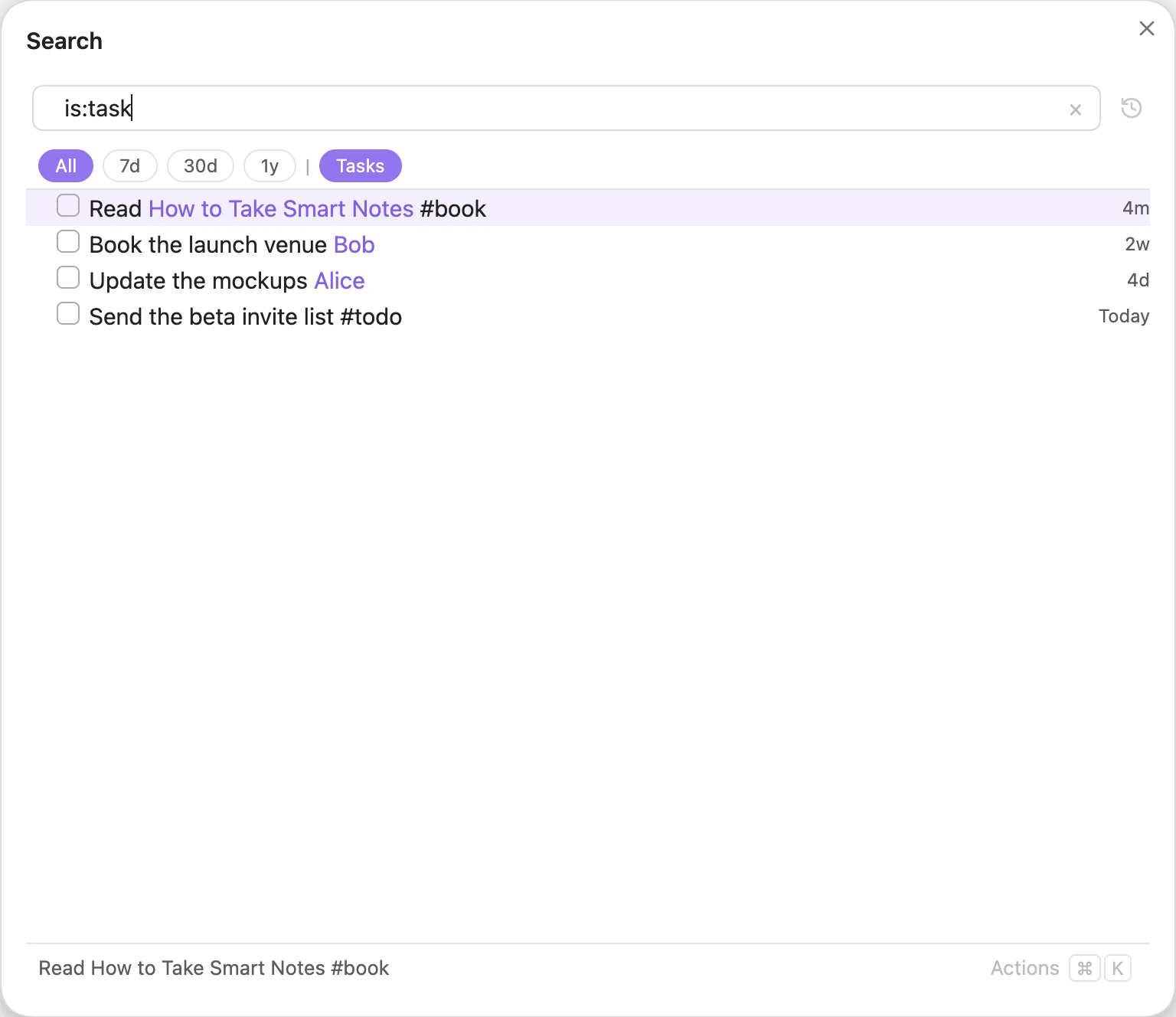
is:task lists every open task in the vault; done tasks are left out.
Content — has:
| Syntax | Meaning |
|---|---|
has:emoji |
has an emoji |
has:link |
has any link |
has:page |
has a page link |
Recency — in:
| Syntax | Meaning |
|---|---|
in:7d |
last 7 days |
in:2w |
last 2 weeks |
in:1m |
last month |
in:1y |
last year |
Scope — outline:, [[note]]
| Syntax | Meaning |
|---|---|
outline:<note> |
outline of the latest note matching <note> |
outline:"my note" |
outline of exactly “my note” |
outline:":daily" |
outline of today’s daily note |
[[my note]] |
exactly “my note” with all its children, from any note |
[[my note#Heading]] |
that heading with all its children, from any note |
[[name |
notes and headings whose name matches; Enter or Tab completes the link |
outline: shows only what is written inside a note. [[my note]] goes further and adds everything written about it anywhere in your vault.
While a [[ is open (no ]] after it), the results list only notes and headings whose name matches what you typed after it, as in Insert Link. Pick one with Enter or Tab, and the query becomes its [[link]], which shows its tree.
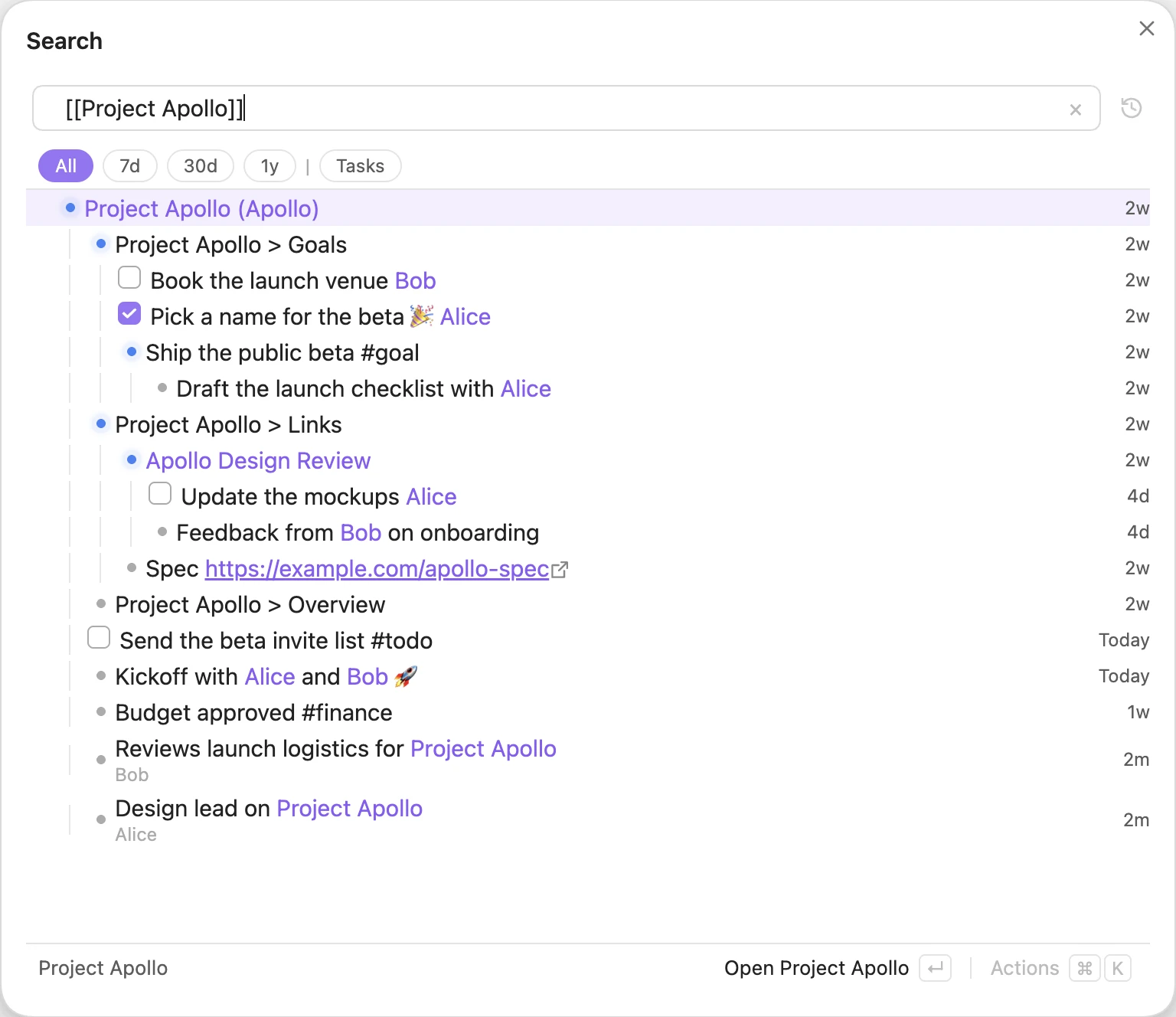
[[Project Apollo]]: the note plus everything written about it anywhere.
Combine
| Syntax | Meaning |
|---|---|
a b |
AND — both |
a | b |
OR — either |
-a |
NOT — exclude a, with everything under it |
(a | b) c |
grouping |
a . b |
stage — find a, then b beneath it |
Operators bind in this order, tightest first: NOT, then AND, then OR, then stage (.). Use parentheses when you need a different grouping.
The stage separator is . by default. You can change it in Settings.
A -a term hides every line, heading or note matching a, and everything under it, wherever it would appear in the results, whichever stage you write it in. parent . child -draft shows the child lines under parent, minus any draft line and the lines nested under it; a child line that sits under a draft line is hidden too. A NOT inside an OR (a | -b) only applies to that one line.
Saved filters — :Name
:Name stands for the query of your saved filter called Name (see filter pills), matched whole and ignoring case. :Tasks searches is:task, -:Tasks excludes it, and (:Work | :Home) takes either. A word after : that names no filter is plain text.
Type : to list your filters; keep typing to narrow the list (:T → :Tasks), and press Tab or Enter to insert one. The pills offered by the list are highlighted while it is open.
There are no built-in : shortcuts. To get one back, save it as a filter: for example a filter named page with query is:page makes :page work again, and daily with outline:":daily" brings back :daily.
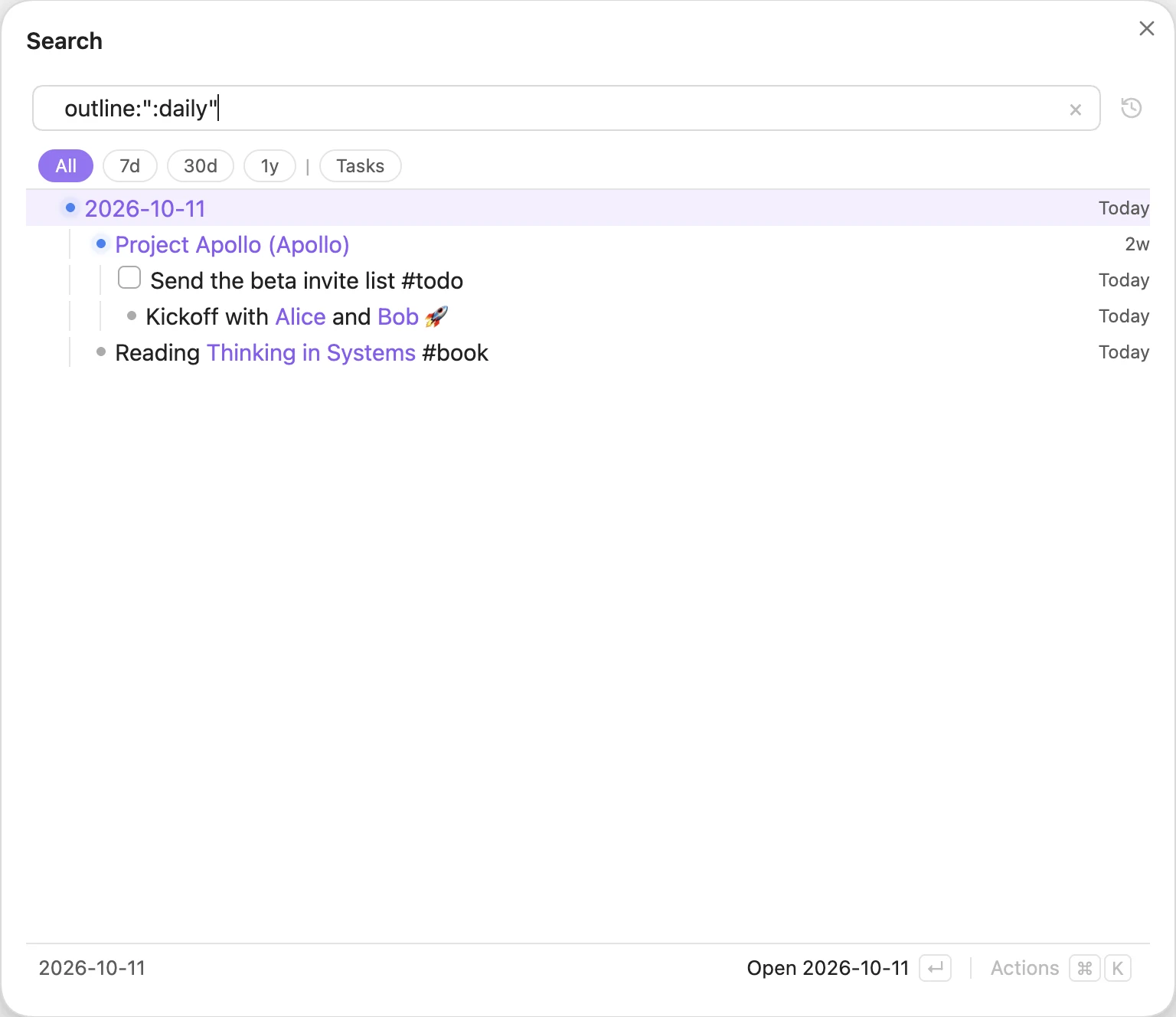
outline:":daily" shows the outline of today’s daily note.